Home > Tutorials

Confirming Shifts
Introduction
At this stage, we have created shifts, rostered staff to them, and now we progress to managing the individual shifts.
|
Getting There:
[ NAV ] –> Scheduling Workbench
|
Top of Page
Introduction
The generation of standard schedules prepares PowerForce with pre-defined rosters. The shifts for the period 1 July yo .
Completed generated schedule
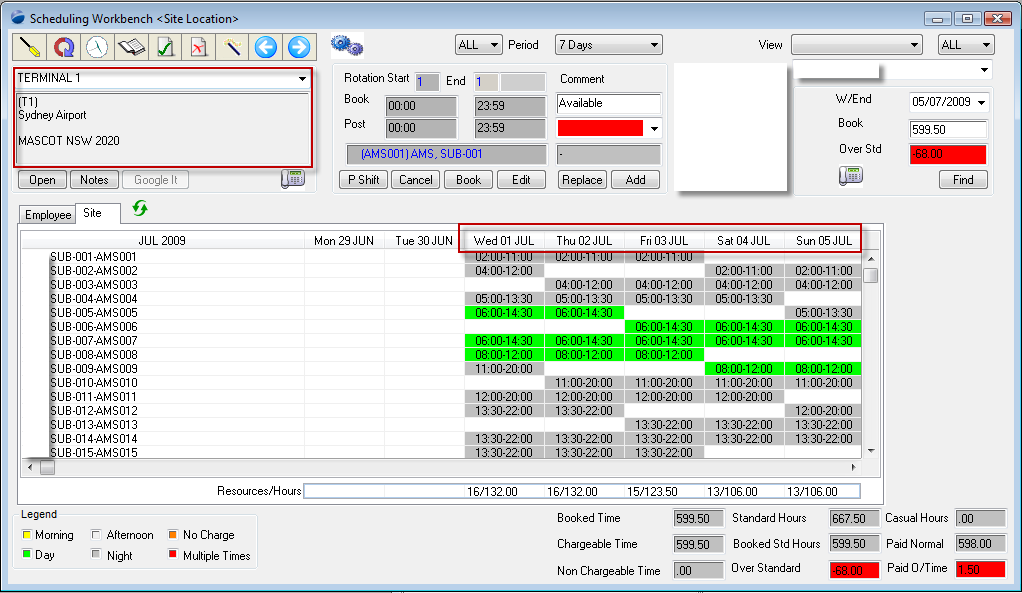
If you notice the font on the workbench grid is normal display.
Top of Page
Confirming the shifts
In PowerForce you must actually confirm all shift times - and the actual process involves your selecting the confirm shifts icon, & following the prompts with your actual responses, as per the following example:
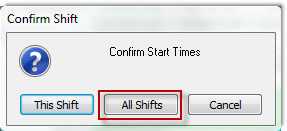 which will be followed by a list of the shifts in this view: which will be followed by a list of the shifts in this view: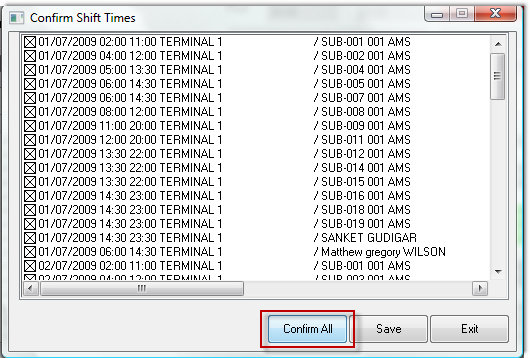 . Press Confirm All, and then Save. . Press Confirm All, and then Save.
This brings you to a refreshed display:
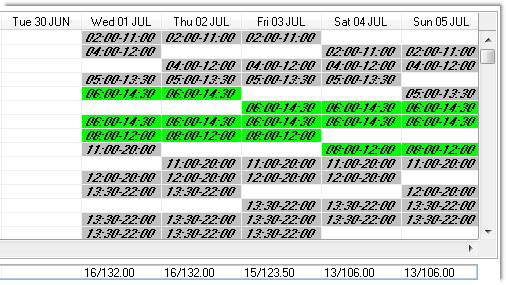
This presents a visual cue that the shifts on this location have been confirmed, and are ready for both payroll & invoicing.
Top of Page
See Also
 PowerForce Controls PowerForce Controls
SACL Client Work Schedules
SACL Client Standard Schedules
Top of Page
|