Home > Tutorials

Plant TimeSheet Entry - PowerForce ™
Introduction
The following document outlines the use of time sheet entry screen based around the "Plant Department Daily Timesheets".
|
Getting There:

|
Introduction
This time sheet has been designed to reflect the Plant Department Daily Timesheet, where you enter the day's shift details on a per employee basis.
Entering Data
The basic design of the screens is to make the required data input intuitive and where possible pre-populated with drop-downs so that the data is immediately validated agains the values in the drop-downs. The first entry you must make on this screen is to enter the employee id.
You may enter the id if you know it, otherwise, use the drop-down and select the employee. The employee's name will automatically be entered into the next field, and you will then be prompted to enter the "period" date that you're looking at. What this means is that if you select (as per below image) a date of 12/12/10 and a period selection of "Weekly", the display will firstly check to see if this employee already has timesheets covering the 7 day period ending 12/12/10. If there are any existing time sheets, they will be displayed to you.

Therefore, the fields to the right of the Date (Daily, Weekly, Fortnightly) indicate the mode of the display on the screen (ie : week ending). Selecting :
- daily : will look for time sheets only matching the date selected (e.g. Sun 12/12/10)
- weekly : will look for time sheets matching 7 days prior to the date selected (hence 06/12/10 to 12/12/10)
- fortnightly : will look for time sheets 14 days prior to the date selected.
The data entry relating to plant and job number has the following specific logic.
- If you enter a Plant Number and no Job Number, then the system expects to take an Equipment Cost Code in the Job/Equip Cost Code column.
- If you enter enter a Job Number, the field accepts only the Job Code, irrespective if you have a Plant Number entered.
Top of Page
Defining the Data entry details
To enter data, start by selecting the employee for whom the time sheet is being prepared. In the case of this time sheet entry screen, all staff are shown as there is no catergorisation of Plant Staff (which could further limit the number of employees shown).
However, if each user logs in via their own login id, they can use the preferences to limit the names to only themself.
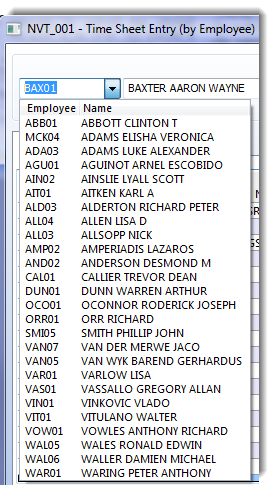
NOTE: If you enter a value which is not in the dropdown list, however it is a valid employee id, you will be able to continue to enter data for that employee.
Entering the Plant Number
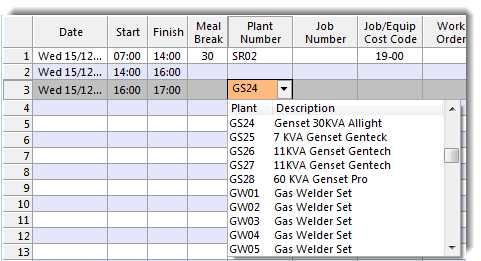
To enter the equipment worked on, use the dropdown as shown below or enter the plant directly. Notice that the dropdown has all of the plant available, the assumption being that a plant engineer will be called to work on any piece of equipment.
Entering a Job Code (If applicable)
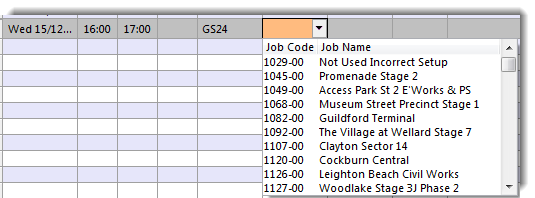
To enter a job number (if one is applicable), enter it as per below. You may use the dropdown, or enter the data directly. Notice that the dropdown has all of the available jobs listed.
Top of Page
Entering a Job / Equipment Cost Code
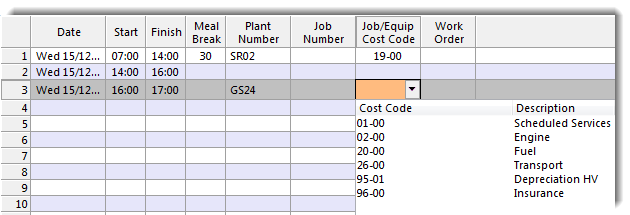
This image shows how the possible selection of Equipment Cost Codes is limited to those that apply to the piece of equipment worked on.
Top of Page
Completed Time Sheet
The completed timesheet for the one day will be as follows. Notice that on the RHS of the screen you have the total time for each particular line item, and across the top you have the total hours for all of the entries on display. The data once saved, turns blue to give a visual indication of that action.
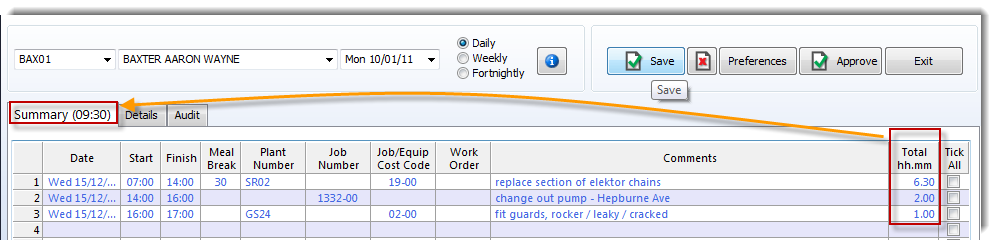
You can see in this entry that the employee has taken a 30 minute lunch break in the period 07.00 - 14.00. The taking of the lunch break could also have been entred by having the Finish time of the first line at 13.30 and 0.00 for the lunch break.
Top of Page
Details Tab
Because of the amount of information on display, the details tab is provided to show the Plant and Job Number descriptions.
Audit Tab
The audit tab serves to display changes made to the data.

See Also
 Accelerator keys Accelerator keys
Employee Timesheet Entry (ver 1)
Employee Timesheet Entry (ver 2)
Top of Page

Article updated by PowerForce Software on Thursday, January 9, 2011.
Copyright ©2011 Envizion Systems - All Rights Reserved - Terms of Use.
|