Home

Custom
|
The Batch processor was developed to remove the need for workstations to become unproductive as users processed necessary reporting.
The Batch processor runs on which ever server is designated as the Batch Server. In the case of WGS, VESSECPFORCE01
is the dedicated batch server.
The Batch
Report Processor runs reports out to .pdf or .csv file formats.
Selected Reports
and ALL Ad-Hoc (Management) reports can be submitted to the Batch Report
Processor. |
|
Introduction
The
PowerForce Batch Report Processing module runs on VESSECPFORCE01 as a processing
window only. The reason for this is that the print routines and the code they rely on are Window based code, and hence cannot be run as pure background processes. To that end, a user logon has to be utilised to run the batch process.
In the case of the Batch processor, all PowerForce framework components are switched off
and only the essential components required are loaded for processing report
requests (
Starting and Stopping).
The Batch process
is started by the desktop icon and/or a command line that can be added to the
Server Startup commands.
A base
instance of the Batch Report Processor may be added to the Vesbatch01 startup commands
More that
one instance of the Batch Report Processor can be started simultaneously, in which case the jobs are queued to the process which is free at the time. Additional sessions
are started by dbl-clicking on the Desktop Shortcut.
Each
session started is issued with a unique process id (PID) to differentiate each
session of the Batch Report Processor. This process id is in turn allocated to
each print job as it is run and this prevents each instance of a report from
being processed multiple times.
An instance
of the Batch Report Processor may be stopped by either clicking on the Stop
Processing button on the actual application window (between cycles of activity) or End Process from the Task
Manager.
Using the scheduling workbench
Dependancies
The Batch
Report Processor depends on the Application Server (VESSECPFORCE01) being available
for access. Should the Application Server be rebooted for any reason, then all
instances of the Batch Report Processor must be ended and subsequently
restarted.
Operating requirements:
The Batch
Report Processor must be run in an active windows environment to facilitate use
of the Windows Presentation Manager and active default printer for output to .pdf
file format to be successful.
You must ensure
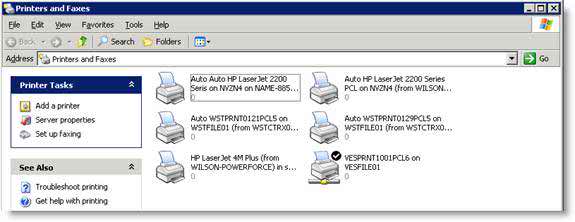
that the default printer for the environment is permanently available to the
machine otherwise this process will not work correctly.
A symptom that
there is no permanent default printer
assigned is that reports will be run but there is no pdf file created and the
subsequent email back to the user will be missing the intended attached report
file. This commonly occurs when the connection to the server is closed.
Checking the default printer environment
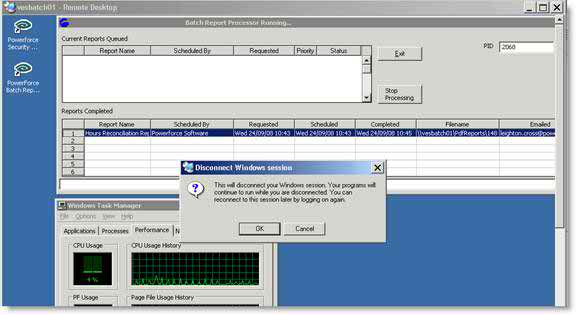
The session may be closed to leave the program running in background.
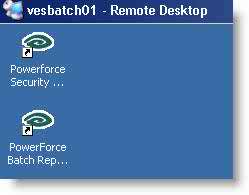
Choose the PowerForce Batch Report Processor shortcut from the Desktop
Closing the Remote Session:
Once the
Batch Server has loaded and started, the session can be Disconnection from the
Server leaving the processes running in the background as follows:
 X X
Examples
This view
shows multiple sessions of the Batch Report Processor running.
- There are
two (2) modes: Active and Sleeping
- Active is
where a report queued is being processed
- Sleeping is
where there are no reports to process, noted by the scrolling banner
- Each window
has a unique PID (Process ID)

Task Manager & Process Table
- Each Batch Report Processor running is represented in the Task Manager Processes table by its unique process id (PID).
- Look for instances of the executable OINSIGHT.EXE
- When a report is being processed, it will be represented against the PID that is working.
- Close a session by using the End Process button against the selected PID

Top of Page
See Also 
 PowerForce Controls PowerForce Controls
|